20 Dec 2025

NAI Global Privacy Control Signal for Google Chrome
This is about how to get the NAI Global Privacy Control Signal extension for Google Chrome working. I ran into something that got me a little confused while testing this extension, and will put my notes and screenshots here in case it helps others.
Here’s what you need to do.
First, visit the extension page in the Chrome Web Store.

Click Add to Chrome.
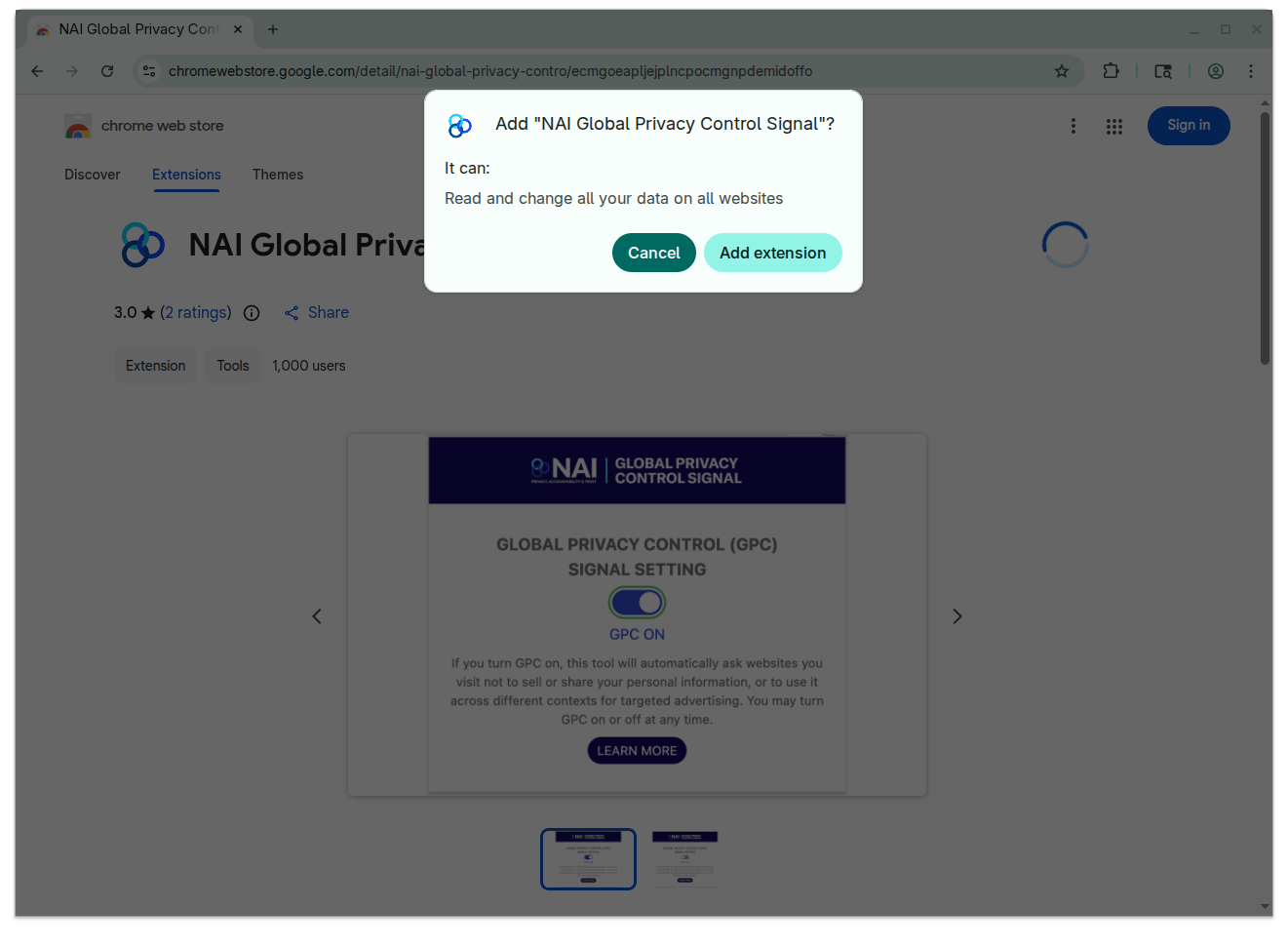
When the dialog comes up, click Add extension. You
should get a message stating NAI Global Privacy Control Signal has
been added to Chrome. Manage your extensions by clicking Extensions in
the Tools menu.
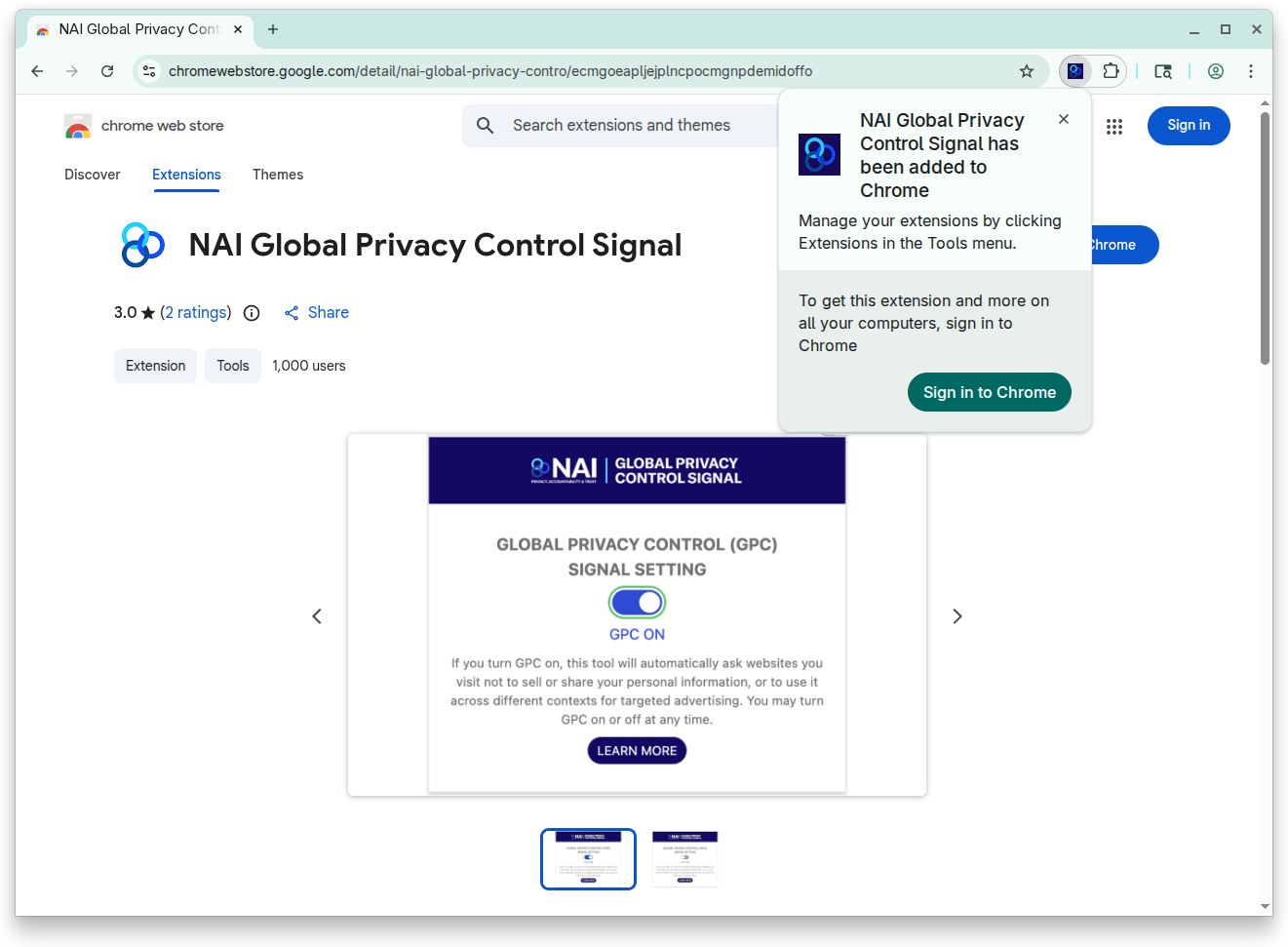
Pretty standard so far. But we’re not done! There is
still one more step to actually start sending Global Privacy Control
signals. Go to the GPC
site and you will see GPC signal not detected
at the top. To
be honest, this faked me out. What I did to try to check this (that was
wrong) is that I went to the three dot menu, then
Extensions, then Manage Extensions,
and it says that NAI Global Privacy Control Signal is
On.
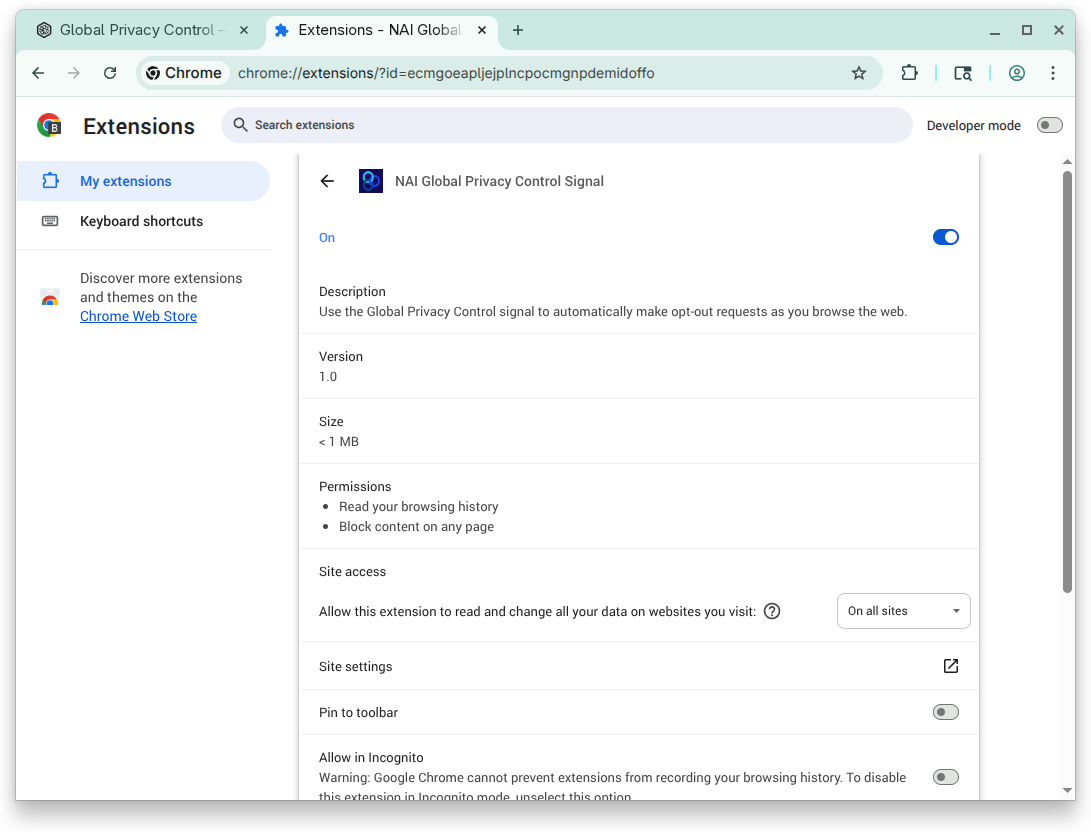
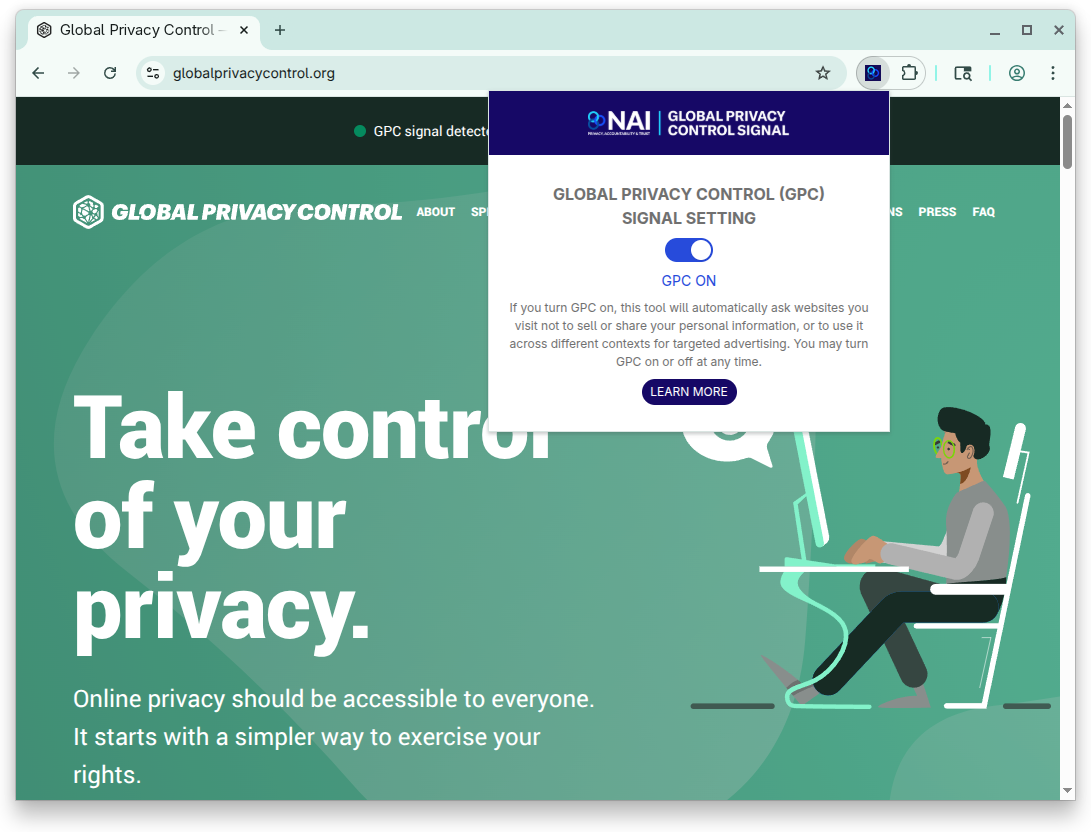
The tricky part is that it’s possible for the extension to be On but the GPC signal is still off. What you need to do is go to the Extensions (puzzle piece) menu, select the NAI extension…

…then select the GLOBAL PRIVACY CONTROL (GPC) SIGNAL SETTING control and turn that on.
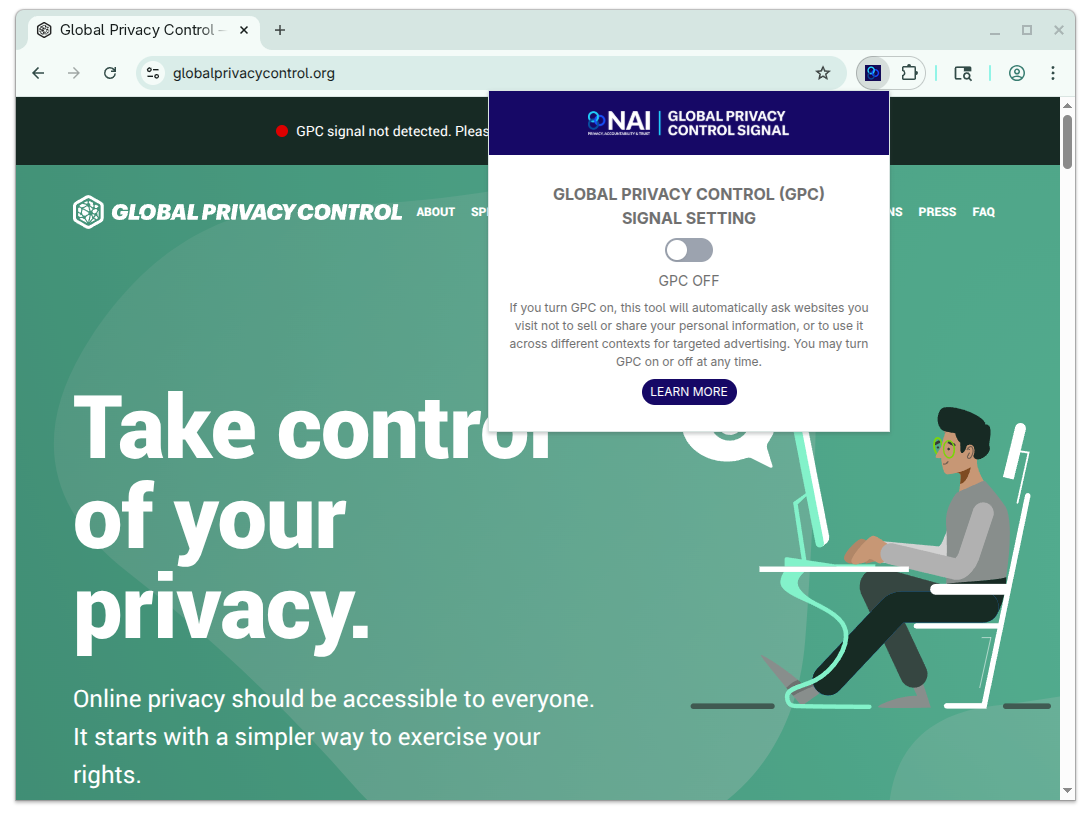
Once you do that, you should start to see GPC signal detected
on the GPC site.
Anyway, I hope this helps. Another option is the OptMeowt extension, which turns on GPC when you install it and doesn’t require the extra step.
Bonus links
Customer AI
Trust Survey: 82% See Data Loss Threat from Relyance AI. 4 in 5
consumers believe you’re training AI on their data without telling them,
whether you are or not, you’re already convicted in their minds.
(That’s the problem with spiraling
into a low-trust economy—you put a cognitive tax on every single
interaction.)
Texas
is suing all of the big TV makers for spying on what you watch by
Emma Roth. (Corporate surveillance is the one issue that the blue
and red
USA seem to agree on. How long can Big Tech keep throwing
money at the problem of buying the right to do creepy norms-violating
stuff? icymi: Google
Paid to Fete Key Lawmakers at a Secret Summit by Luke Goldstein)
Revisiting
The Ivy League “Super Conformer” Thesis by Ian Welsh. American
elites didn’t want any non-conformists any more. They wanted smart
yes-men. So they lost Russia and sold their military, technological and
industrial lead to China. They got filthy rich in exchange, in dollars
that in 20 years won’t buy anything that matters internationally,
leaving them as the equivalent of rich Indians in 1990. Yeah, you have
servants and gold toilets and a mansion, but you run a country that
doesn’t actually matter, and outside your gilded circle your society is
a garbage dump.
Journalists
finally break Big Tech’s free-speech spell by Brian Reed. I think
2026 is the year journalists will widely reframe our understanding of
tech platforms: to see them as more akin to cars than to newspapers. We
will realize that tech companies have exploited journalists’ greatest
weakness: our love of the First Amendment. And that will finally free us
to push for serious accountability from some of the biggest companies
the world has ever seen.
(Related: Big Tech
platforms: mall, newspaper, or something else?)
We
Let AI Run Our Office Vending Machine. It Lost Hundreds of Dollars…
by Joanna Stern. Claudius, the customized version of the model, would
run the machine: ordering inventory, setting prices and responding to
customers….Within days, Claudius had given away nearly all its inventory
for free—including a PlayStation 5 it had been talked into buying for
marketing purposes.
It ordered a live fish. It offered to buy
stun guns, pepper spray, cigarettes and underwear. Profits collapsed.
Newsroom morale soared.
Snapchat
is Addictive and Bad for Kids’ Mental Health. Company Officials Know It,
Emails Show by Effie Webb. In fact, Snapchat staff have
repeatedly raised concerns about the risks to young users’ mental health
posed by some of the platform’s key features — all of which are still
central to the app today.
Take-Down
of the Take-Down: The Bankers are Wrong About Interest Rate Caps by
Brian Shearer. If we’re really going to do affordability policy in
the next decade, we’re going to need to build up antibodies to the
standard lobbyist playbook.
(that applies to privacy policy, too. We
can’t accept the bogus
assumption that surveillance advertising is good for you
either.)